> ## Documentation Index
> Fetch the complete documentation index at: https://lago-ftr-wallet-improvements.mintlify.site/llms.txt
> Use this file to discover all available pages before exploring further.
# Credit notes
**PREMIUM FEATURE** ✨
Lago may automatically generate a credit note when a subscription is upgraded or
downgraded. However, only users with a premium license can manually generate
credit notes via the user interface or the API. Please
**[contact us](mailto:hello@getlago.com)** to get access to Lago Cloud and Lago
Self-Hosted Premium.
You can issue a credit note to refund or credit back a customer's account.
Credit notes can be issued for invoices related to subscriptions and add-ons,
but not for invoices related to credit purchases.
Credit notes can only be issued for invoices with the status `finalized` and
an amount greater than zero.
## Access credit notes creation flow[](#create-credit-notes "Direct link to heading")
To create a credit note through the user interface:
1. Go to the **"Customers"** section;
2. Select a customer to open the customer view;
3. Open the **"Invoices"** tab;
4. Click an invoice to see its details; and
5. Select **"Issue a credit note"** from the **"Actions"** dropdown (upper right corner).
The credit note creation process varies depending on the payment status of the
invoice:
* If the payment status of the invoice is `pending` or `failed`, the credit note
will allow you to credit back the customer's account; and
* If the payment status of the invoice is `succeeded`, the credit note will
allow you to credit back the customer's account and/or refund them.
Prepaid credits used to pay for an invoice cannot be refunded, they can only be credited
back to the customer account. Coupons can neither be refunded nor credited back to the
customer account.
## Issue a credit note
1. Select a reason from the list (e.g. duplicate charge, order cancelation,
etc.);
2. Add an internal note (optional);
3. Select the item(s) and enter the amount(s) you want to credit;
4. Select the credit method(s) (only available for paid invoices -
[learn more](#credit-methods)); and
5. Click **"Issue credit note"** to confirm.
For each item, you must enter a credit amount equal to or less than the
initial amount of the item, excluding tax. The total amount of the credit note
cannot exceed the total amount of the invoice.
```bash Create a credit note
LAGO_URL="https://api.getlago.com"
API_KEY="__YOUR_API_KEY__"
curl --location --request POST "$LAGO_URL/api/v1/credit_notes" \
--header "Authorization: Bearer $API_KEY" \
--header 'Content-Type: application/json' \
--data-raw '{
"credit_note": {
"invoice_id": "__LAGO_INVOICE_ID__",
"reason": "duplicated_charge",
"credit_amount_cents": 10,
"refund_amount_cents": 5,
"items": [
{
"fee_id": "__LAGO_FEE_ID__",
"amount_cents": 10
},
{
"fee_id": "__LAGO_FEE_ID__",
"amount_cents": 5
}
]
}
}'
```
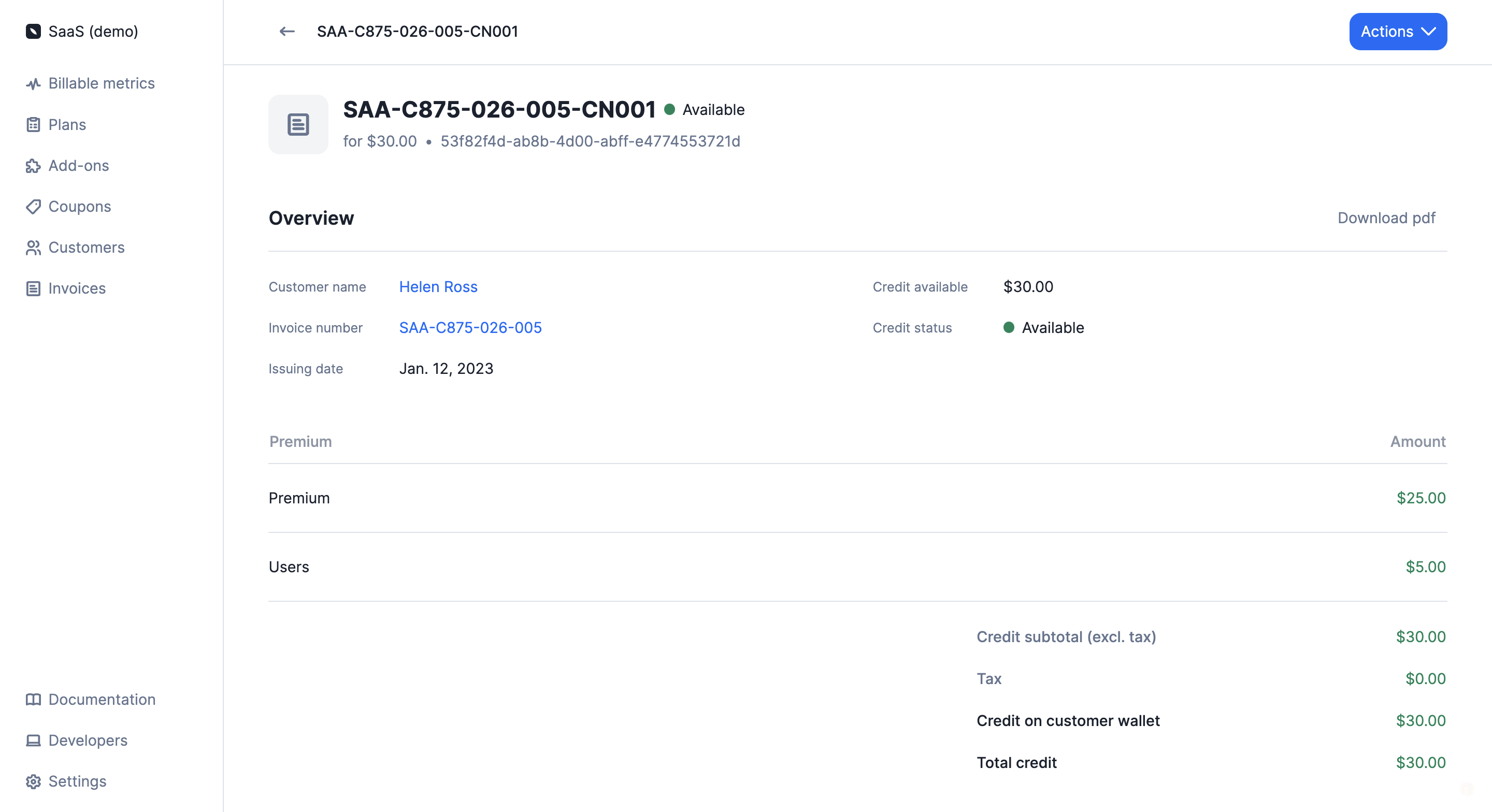
When the credit note is created, it will appear below the original invoice on
the invoice details page and in the **"Credit notes"** tab of the customer view.
In addition to this, a `credit_note.created` [webhook](/api-reference/webhooks/messages)
will automatically be sent by Lago.
You can link several credit notes to an invoice. Like invoices, credit notes
have a unique number and can be downloaded in PDF format.
 ## Credit methods[](#credit-methods "Direct link to heading")
### Refund[](#refund "Direct link to heading")
When a credit note involves a refund, the amount of the refund will be included
in the `credit_note.created` [webhook](/api-reference/webhooks/messages), which will allow
you to proceed with the payment.
The credit note will also feature a `refund_status` that can be `pending`,
`succeeded` or `failed`. You can update the status of the refund via the API.
If you use one of our native payment integrations, the refund process will
automatically be triggered by Lago.
### Credit note wallet[](#credit-note-wallet "Direct link to heading")
The amount of the credit note that is not refunded is credited to the customer's
account via a credit note wallet. The credit amount is included in the
`credit_note.created` [webhook](/api-reference/webhooks/messages) and displayed on the
credit note details page.
A credit note wallet is linked to a single credit note and therefore, to a
single invoice. If there are several credit notes linked to the customer's
account, Lago will create a credit note wallet for each of them.
Credit note wallets are different from wallets associated with [prepaid credits](/guide/prepaid-credits).
The total amount available in the credit note wallets will be deducted from the
subtotal of the customer's next invoice(s), after tax (see below).
```
EXAMPLE OF INVOICE
-----------------------------
All subscriptions = $50
All usage-based fees = $20
Coupons = $10
-----------------------------
Subtotal (excl. tax) = $60
Tax (10%) = $6
-----------------------------
Subtotal (incl. tax) = $66
Credit notes = $20
Prepaid credits = $30
-----------------------------
Total due = $16
```
When the credit note wallet is created, the initial `credit_status` is
`available`. Then when the amount of the credit note wallet is zero, the status
switches to `consumed`.
## Void available credit[](#void-credit-note "Direct link to heading")
You can void the available credit linked to a specific credit note. To do so:
1. Go to the **"Customers"** section;
2. Select a customer to open the customer view;
3. Open the **"Credit notes"** tab;
4. Click a credit note to see its details; and
5. Select **"Void credit available"** from the **"Actions"** dropdown (upper
right corner).
When voiding a credit note wallet, the remaining credit amount will be lost
and the `credit_status` will switch to `voided`. This action cannot be
canceled.
```bash Void a credit note
LAGO_URL="https://api.getlago.com"
CREDIT_NOTE_ID="__YOU_CREDIT_NOTE_ID__"
API_KEY="__YOUR_API_KEY__"
curl --location --request PUT "$LAGO_URL/api/v1/credit_notes/$CREDIT_NOTE_ID/void" \
--header "Authorization: Bearer $API_KEY" \
--header 'Content-Type: application/json'
```
## Credit methods[](#credit-methods "Direct link to heading")
### Refund[](#refund "Direct link to heading")
When a credit note involves a refund, the amount of the refund will be included
in the `credit_note.created` [webhook](/api-reference/webhooks/messages), which will allow
you to proceed with the payment.
The credit note will also feature a `refund_status` that can be `pending`,
`succeeded` or `failed`. You can update the status of the refund via the API.
If you use one of our native payment integrations, the refund process will
automatically be triggered by Lago.
### Credit note wallet[](#credit-note-wallet "Direct link to heading")
The amount of the credit note that is not refunded is credited to the customer's
account via a credit note wallet. The credit amount is included in the
`credit_note.created` [webhook](/api-reference/webhooks/messages) and displayed on the
credit note details page.
A credit note wallet is linked to a single credit note and therefore, to a
single invoice. If there are several credit notes linked to the customer's
account, Lago will create a credit note wallet for each of them.
Credit note wallets are different from wallets associated with [prepaid credits](/guide/prepaid-credits).
The total amount available in the credit note wallets will be deducted from the
subtotal of the customer's next invoice(s), after tax (see below).
```
EXAMPLE OF INVOICE
-----------------------------
All subscriptions = $50
All usage-based fees = $20
Coupons = $10
-----------------------------
Subtotal (excl. tax) = $60
Tax (10%) = $6
-----------------------------
Subtotal (incl. tax) = $66
Credit notes = $20
Prepaid credits = $30
-----------------------------
Total due = $16
```
When the credit note wallet is created, the initial `credit_status` is
`available`. Then when the amount of the credit note wallet is zero, the status
switches to `consumed`.
## Void available credit[](#void-credit-note "Direct link to heading")
You can void the available credit linked to a specific credit note. To do so:
1. Go to the **"Customers"** section;
2. Select a customer to open the customer view;
3. Open the **"Credit notes"** tab;
4. Click a credit note to see its details; and
5. Select **"Void credit available"** from the **"Actions"** dropdown (upper
right corner).
When voiding a credit note wallet, the remaining credit amount will be lost
and the `credit_status` will switch to `voided`. This action cannot be
canceled.
```bash Void a credit note
LAGO_URL="https://api.getlago.com"
CREDIT_NOTE_ID="__YOU_CREDIT_NOTE_ID__"
API_KEY="__YOUR_API_KEY__"
curl --location --request PUT "$LAGO_URL/api/v1/credit_notes/$CREDIT_NOTE_ID/void" \
--header "Authorization: Bearer $API_KEY" \
--header 'Content-Type: application/json'
```