> ## Documentation Index
> Fetch the complete documentation index at: https://lago-ftr-wallet-improvements.mintlify.site/llms.txt
> Use this file to discover all available pages before exploring further.
# Download invoices
When a new invoice is `finalized`, Lago will automatically send a
[webhook](/api-reference/webhooks/messages) to notify you. It will also generate a PDF
file that you can download and send to your customer.
To download an invoice through the user interface:
1. Click **"Customers"** in the side menu;
2. Select a customer from the list;
3. Open the **"Invoices"** tab;
4. Click the **ellipsis icon** on the right of the invoice; and
5. Click **"Download invoice"** to open the file in a new tab.
You can also download invoices via API ([learn more](/api-reference/invoices/download)).
```bash Download an invoice PDF
LAGO_URL="https://api.getlago.com"
INVOICE_ID="__YOU_INVOICE_ID__"
API_KEY="__YOUR_API_KEY__"
curl --location --request POST "$LAGO_URL/api/v1/invoices/$INVOICE_ID/download" \
--header "Authorization: Bearer $API_KEY" \
--header 'Content-Type: application/json'
```
## How to modify the invoice template[](#how-to-modify-the-invoice-template "Direct link to heading")
Changes to the invoice template and new information about your organization do not affect existing invoices and only apply to future invoices.
### Add information about your organization
You can modify some of the elements that are included in the PDF invoice, such as information about the organization, its logo and the footer.
To update your organization's information and logo:
1. Click **"Settings"** in the side menu;
2. In the **"Organization"** tab, click **"Edit"** in the **"Information"** block;
3. Choose a file to update the logo and fill out the form to update your organization's information; and
4. Click **"Save information"** to confirm.
For the logo, you can upload a JPG or PNG file with a maximum size of 800 KB.
### Add a custom footer
To update the footer of the invoice:
1. Click **"Settings"** in the side menu;
2. Open the **"Invoice"** tab;
3. Select **"Edit"** in the **"Invoice default footer"** block;
4. Enter your text (maximum 600 characters); and
5. Click **"Save information"** to confirm.
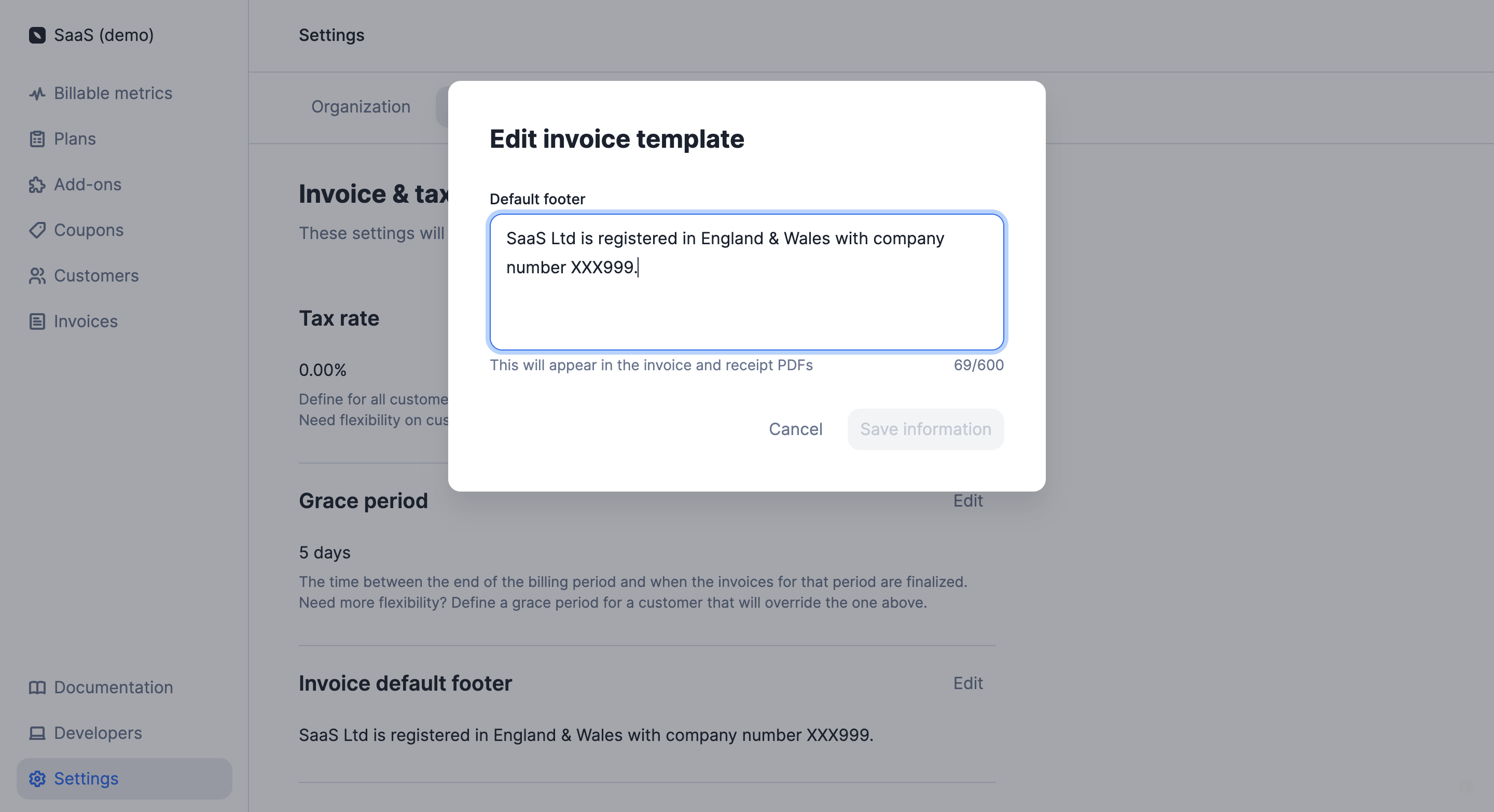 You can update the customer footer of invoices by changing the `invoice_footer` in the `billing_configuration` object of your organization endpoint.
```bash Update the customer footer of your invoices
LAGO_URL="https://api.getlago.com"
API_KEY="__YOUR_API_KEY__"
curl --location --request PUT "$LAGO_URL/api/v1/organizations" \
--header "Authorization: Bearer $API_KEY" \
--header 'Content-Type: application/json' \
--data-raw '{
"organization": {
"name": "Name1",
"webhook_url": "https://test-example.example",
"country": "CZ",
"address_line1": "address1",
"address_line2": null,
"state": "state1",
"zipcode": "10000",
"email": "org@email.com",
"city": "city125",
"legal_name": null,
"legal_number": null,
"tax_identification_number": "EU123456789",
"timezone": "Europe/Paris",
"email_settings": [
"invoice.finalized",
"credit_note.created"
],
"billing_configuration": {
"invoice_footer": "footer custom",
"invoice_grace_period": 3,
"document_locale": "fr",
}
}
}'
```
### Translate invoices
To set the default language for documents:
1. Click **"Settings"** in the side menu;
2. Open the **"Invoice"** tab;
3. Select **"Edit"** in the **"Document language"** block;
4. Select your preferred language from the list; and
5. Click **"Edit language"** to confirm.
The organization's default language can be overwritten by the customer's preferred language ([learn more](/guide/customers/invoice-customer#preferred-language)).
You can update the customer footer of invoices by changing the `document_locale` in the `billing_configuration` object of your organization endpoint.
```bash Update the documents locale
LAGO_URL="https://api.getlago.com"
API_KEY="__YOUR_API_KEY__"
curl --location --request PUT "$LAGO_URL/api/v1/organizations" \
--header "Authorization: Bearer $API_KEY" \
--header 'Content-Type: application/json' \
--data-raw '{
"organization": {
"name": "Name1",
"webhook_url": "https://test-example.example",
"country": "CZ",
"address_line1": "address1",
"address_line2": null,
"state": "state1",
"zipcode": "10000",
"email": "org@email.com",
"city": "city125",
"legal_name": null,
"legal_number": null,
"tax_identification_number": "EU123456789",
"timezone": "Europe/Paris",
"email_settings": [
"invoice.finalized",
"credit_note.created"
],
"billing_configuration": {
"invoice_footer": "footer custom",
"invoice_grace_period": 3,
"document_locale": "fr"
}
}
}'
```
Please refer to the API documentation to see the [list of supported languages](/api-reference/resources/locales).
You can update the customer footer of invoices by changing the `invoice_footer` in the `billing_configuration` object of your organization endpoint.
```bash Update the customer footer of your invoices
LAGO_URL="https://api.getlago.com"
API_KEY="__YOUR_API_KEY__"
curl --location --request PUT "$LAGO_URL/api/v1/organizations" \
--header "Authorization: Bearer $API_KEY" \
--header 'Content-Type: application/json' \
--data-raw '{
"organization": {
"name": "Name1",
"webhook_url": "https://test-example.example",
"country": "CZ",
"address_line1": "address1",
"address_line2": null,
"state": "state1",
"zipcode": "10000",
"email": "org@email.com",
"city": "city125",
"legal_name": null,
"legal_number": null,
"tax_identification_number": "EU123456789",
"timezone": "Europe/Paris",
"email_settings": [
"invoice.finalized",
"credit_note.created"
],
"billing_configuration": {
"invoice_footer": "footer custom",
"invoice_grace_period": 3,
"document_locale": "fr",
}
}
}'
```
### Translate invoices
To set the default language for documents:
1. Click **"Settings"** in the side menu;
2. Open the **"Invoice"** tab;
3. Select **"Edit"** in the **"Document language"** block;
4. Select your preferred language from the list; and
5. Click **"Edit language"** to confirm.
The organization's default language can be overwritten by the customer's preferred language ([learn more](/guide/customers/invoice-customer#preferred-language)).
You can update the customer footer of invoices by changing the `document_locale` in the `billing_configuration` object of your organization endpoint.
```bash Update the documents locale
LAGO_URL="https://api.getlago.com"
API_KEY="__YOUR_API_KEY__"
curl --location --request PUT "$LAGO_URL/api/v1/organizations" \
--header "Authorization: Bearer $API_KEY" \
--header 'Content-Type: application/json' \
--data-raw '{
"organization": {
"name": "Name1",
"webhook_url": "https://test-example.example",
"country": "CZ",
"address_line1": "address1",
"address_line2": null,
"state": "state1",
"zipcode": "10000",
"email": "org@email.com",
"city": "city125",
"legal_name": null,
"legal_number": null,
"tax_identification_number": "EU123456789",
"timezone": "Europe/Paris",
"email_settings": [
"invoice.finalized",
"credit_note.created"
],
"billing_configuration": {
"invoice_footer": "footer custom",
"invoice_grace_period": 3,
"document_locale": "fr"
}
}
}'
```
Please refer to the API documentation to see the [list of supported languages](/api-reference/resources/locales).