> ## Documentation Index
> Fetch the complete documentation index at: https://lago-ftr-wallet-improvements.mintlify.site/llms.txt
> Use this file to discover all available pages before exploring further.
# Taxes
> When generating invoices, you may need to apply vat or other taxes. By creating taxes and applying them to the organization or/and customers, their invoices will be directly affected.
## Create taxes[](#create-taxes "Direct link to heading")
**Follow those steps to add a new tax:**
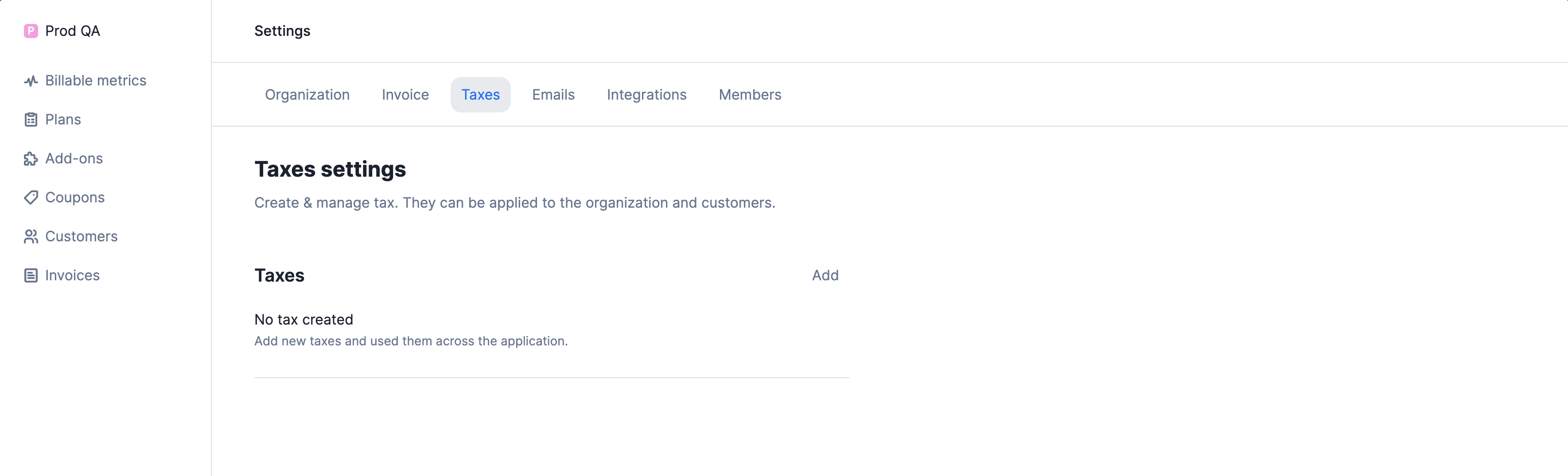
1. Access the tax settings page through the **Settings** section > **Taxes** tab;
2. In the upper right corner of the list, click **"Add"** to create a new tax;
3. Enter its `name`;
4. Assign it a unique `code` (i.e. unique ID as defined in your backend system);
5. Add a `description` *(optional)*; and
6. Define the `rate` that applies.
 ```bash Premium Plan Example
LAGO_URL="https://api.getlago.com"
API_KEY="__YOUR_API_KEY__"
curl --location --request POST "$LAGO_URL/api/v1/taxes" \
--header "Authorization: Bearer $API_KEY" \
--header 'Content-Type: application/json' \
--data-raw '{
"tax": {
"name": "french vat",
"code": "french_vat",
"description":"French standard VAT",
"rate": 20.00,
"applied_to_organization": false
}
}'
```
## Editing and deleting taxes[](#edit-delete-taxes "Direct link to heading")
A tax can be deleted or edited even if it is linked to an organization or a customer.
However, it's important to note that any change made to a tax object, including its removal, has an impact on all existing draft invoices or upcoming invoices associated with this tax.
Available actions include:
* **Edit**: allows you to modify the name, code and rate of the tax object; and
* **Delete**: allows you to delete the tax object and remove it from the list (this action cannot be undone).
## Apply taxes to objects
When generating invoices, you may need to apply taxes.
The tax rate applies to all fees (i.e. subscription fees and charges) and appears on the invoices.
### Taxes at the organization level
To apply tax objects to the organization:
1. Access the invoice settings page through the **Settings** section > **Invoice** tab;
2. In the **Taxes on organization** section, click **"Add"** to add a new tax;
3. Select the tax object you want to apply; and
4. Repeat the action if you want to add another tax.
```bash Premium Plan Example
LAGO_URL="https://api.getlago.com"
API_KEY="__YOUR_API_KEY__"
curl --location --request POST "$LAGO_URL/api/v1/taxes" \
--header "Authorization: Bearer $API_KEY" \
--header 'Content-Type: application/json' \
--data-raw '{
"tax": {
"name": "french vat",
"code": "french_vat",
"description":"French standard VAT",
"rate": 20.00,
"applied_to_organization": false
}
}'
```
## Editing and deleting taxes[](#edit-delete-taxes "Direct link to heading")
A tax can be deleted or edited even if it is linked to an organization or a customer.
However, it's important to note that any change made to a tax object, including its removal, has an impact on all existing draft invoices or upcoming invoices associated with this tax.
Available actions include:
* **Edit**: allows you to modify the name, code and rate of the tax object; and
* **Delete**: allows you to delete the tax object and remove it from the list (this action cannot be undone).
## Apply taxes to objects
When generating invoices, you may need to apply taxes.
The tax rate applies to all fees (i.e. subscription fees and charges) and appears on the invoices.
### Taxes at the organization level
To apply tax objects to the organization:
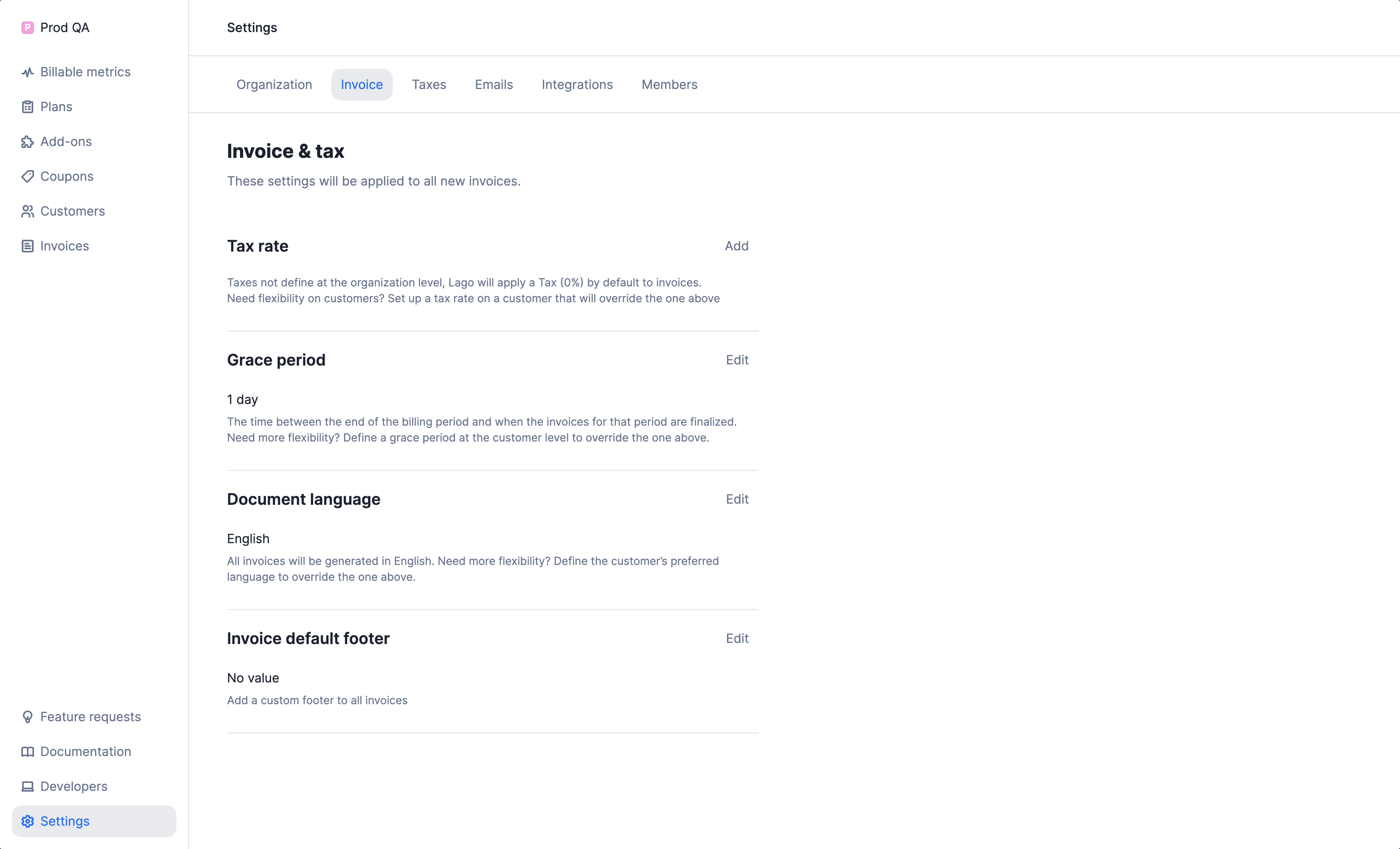
1. Access the invoice settings page through the **Settings** section > **Invoice** tab;
2. In the **Taxes on organization** section, click **"Add"** to add a new tax;
3. Select the tax object you want to apply; and
4. Repeat the action if you want to add another tax.
 ```bash Premium Plan Example
LAGO_URL="https://api.getlago.com"
API_KEY="__YOUR_API_KEY__"
curl --location --request PUT "$LAGO_URL/api/v1/taxes" \
--header "Authorization: Bearer $API_KEY" \
--header 'Content-Type: application/json' \
--data-raw '{
"tax": {
"code": "french_vat",
"applied_to_organization": true
}
}'
```
### Taxes at the customer level
To apply tax objects to a specific customer:
1. Access the customer settings page through the **Customer** details page > **Settings** tab;
2. In the **Tax rates** section, click **"Add a tax"** to add a new tax;
3. Select the tax object you want to apply; and
4. Repeat the action if you want to add another tax.
```bash Premium Plan Example
LAGO_URL="https://api.getlago.com"
API_KEY="__YOUR_API_KEY__"
curl --location --request PUT "$LAGO_URL/api/v1/taxes" \
--header "Authorization: Bearer $API_KEY" \
--header 'Content-Type: application/json' \
--data-raw '{
"tax": {
"code": "french_vat",
"applied_to_organization": true
}
}'
```
### Taxes at the customer level
To apply tax objects to a specific customer:
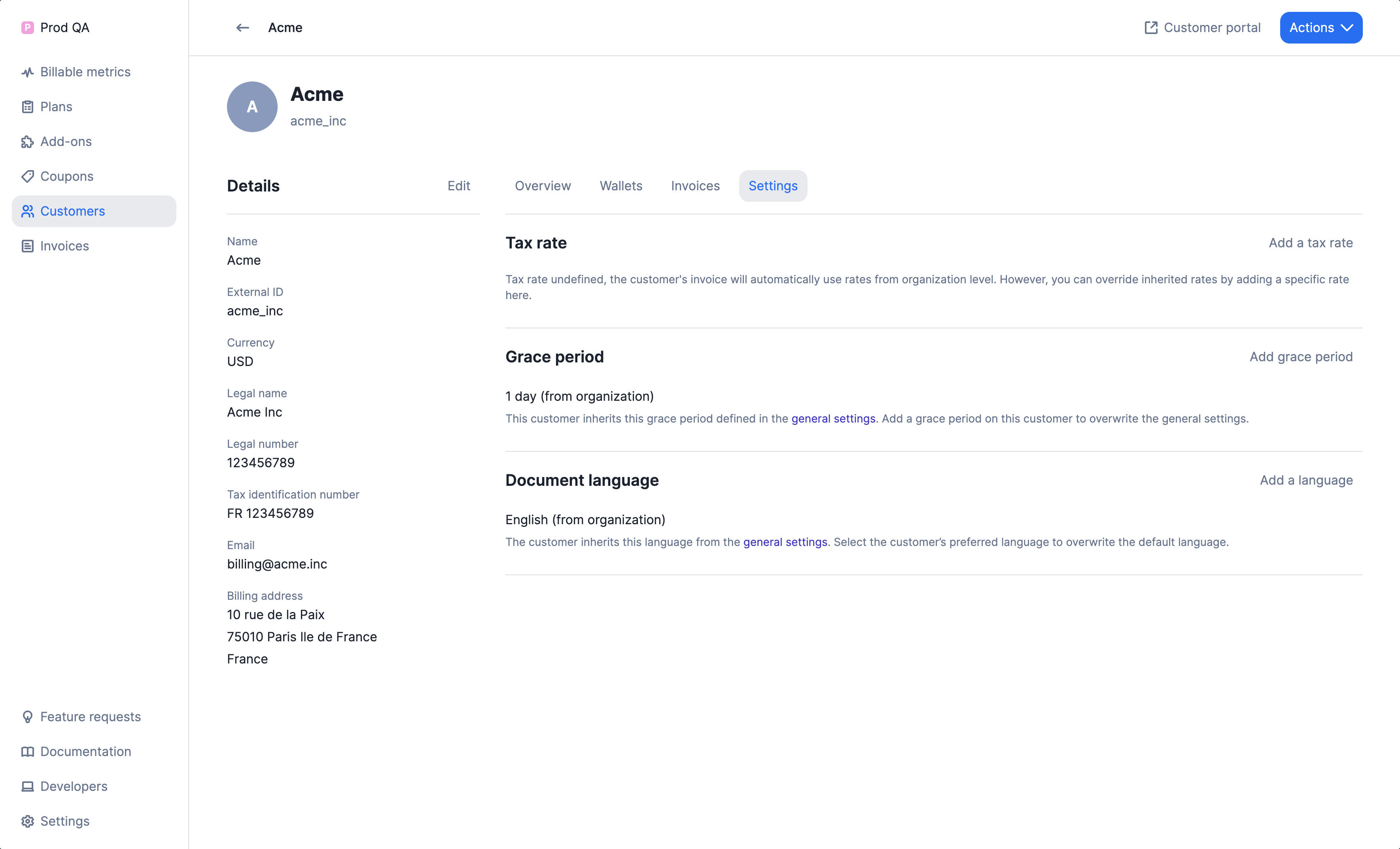
1. Access the customer settings page through the **Customer** details page > **Settings** tab;
2. In the **Tax rates** section, click **"Add a tax"** to add a new tax;
3. Select the tax object you want to apply; and
4. Repeat the action if you want to add another tax.
 ```bash Premium Plan Example
LAGO_URL="https://api.getlago.com"
API_KEY="__YOUR_API_KEY__"
curl --location --request PUT "$LAGO_URL/api/v1/customers" \
--header "Authorization: Bearer $API_KEY" \
--header 'Content-Type: application/json' \
--data-raw '{
"customer": {
"code": "acme_inc",
"tax_codes": ["french_vat"]
}
}'
```
### Taxes at the plan and charges level
Follow these steps to apply tax objects to a plan:
1. Ensure that you have already created the necessary taxes on your account.
2. Navigate to the **Plan** section and click on **Add a plan**.
3. In the **Plan settings** section, click on **Add a tax rate**.
4. If you have usage-based charges, expand the **More options** section for the charge and click on **Add a tax rate** to define taxes specific to that charge.
5. **Note**: If taxes are defined on charges, they will override the tax rate defined at the plan level.
6. Complete the process of creating your plan and apply it to customers to generate an invoice.
```bash Premium Plan Example
LAGO_URL="https://api.getlago.com"
API_KEY="__YOUR_API_KEY__"
curl --location --request PUT "$LAGO_URL/api/v1/customers" \
--header "Authorization: Bearer $API_KEY" \
--header 'Content-Type: application/json' \
--data-raw '{
"customer": {
"code": "acme_inc",
"tax_codes": ["french_vat"]
}
}'
```
### Taxes at the plan and charges level
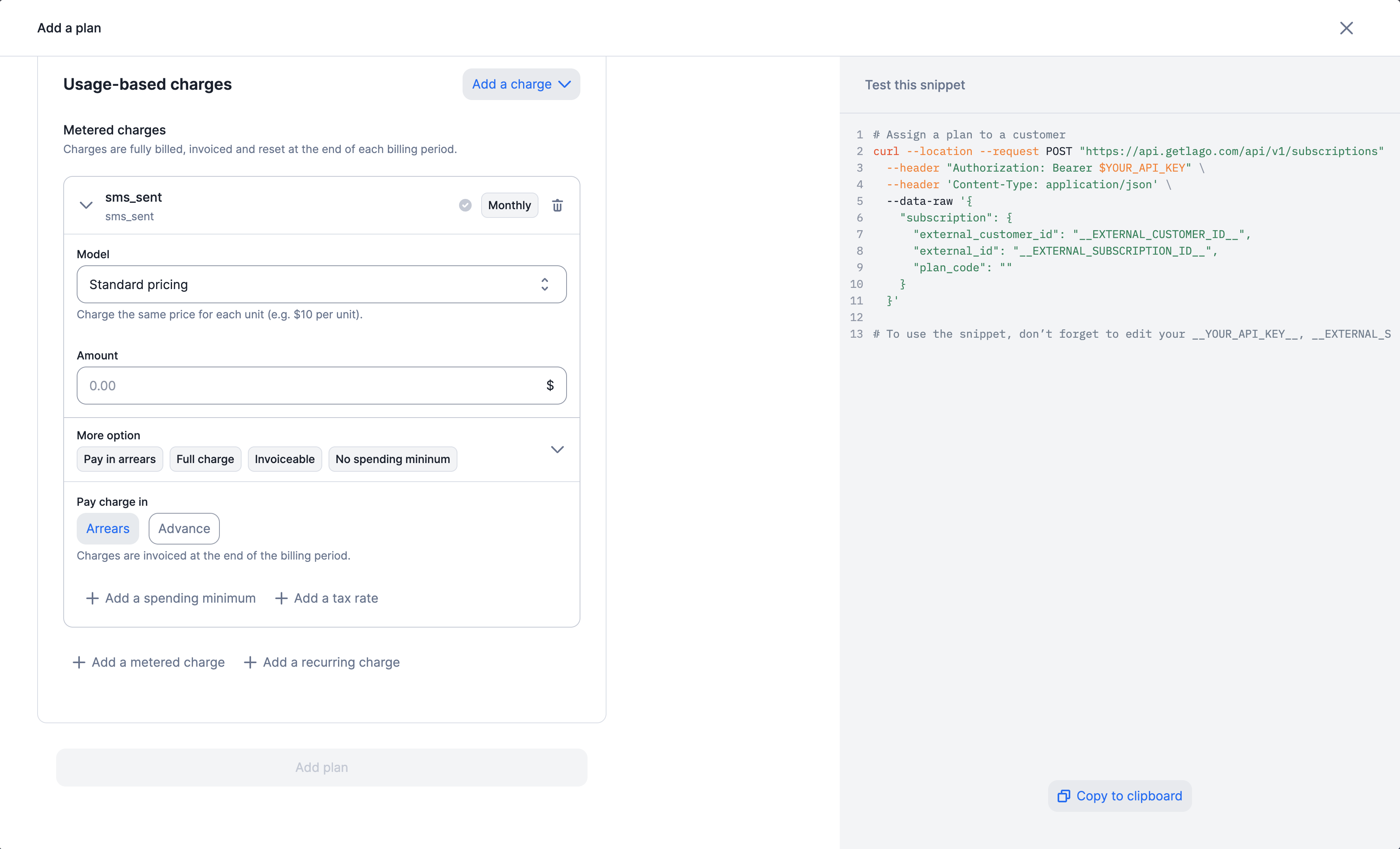
Follow these steps to apply tax objects to a plan:
1. Ensure that you have already created the necessary taxes on your account.
2. Navigate to the **Plan** section and click on **Add a plan**.
3. In the **Plan settings** section, click on **Add a tax rate**.
4. If you have usage-based charges, expand the **More options** section for the charge and click on **Add a tax rate** to define taxes specific to that charge.
5. **Note**: If taxes are defined on charges, they will override the tax rate defined at the plan level.
6. Complete the process of creating your plan and apply it to customers to generate an invoice.
 ```bash Add taxes to a plan and to charges
LAGO_URL="https://api.getlago.com"
API_KEY="__YOUR_API_KEY__"
curl --location --request POST "$LAGO_URL/api/v1/plans" \
--header "Authorization: Bearer $API_KEY" \
--header 'Content-Type: application/json' \
--data-raw '{
"plan": {
"name": "Starter",
"code": "starter",
"interval": "monthly",
"description": "",
"amount_cents": 9900,
"amount_currency": "USD",
"trial_period": "",
"pay_in_advance": true,
"bill_charges_monthly": null,
"tax_codes": ["french_standard_vat"]
"charges": [
{
"lago_billable_metric_id": "61ddebee-f8ac-4794-90cf-d626b55ab0ed",
"billable_metric_code": "user_seat",
"charge_model": "standard",
"invoiceable": true,
"pay_in_advance": false,
"prorated": false,
"min_amount_cents": 0,
"tax_codes":["french_standard_vat"]
"properties": {
"amount": "0.10"
}
}
]
}
}'
```
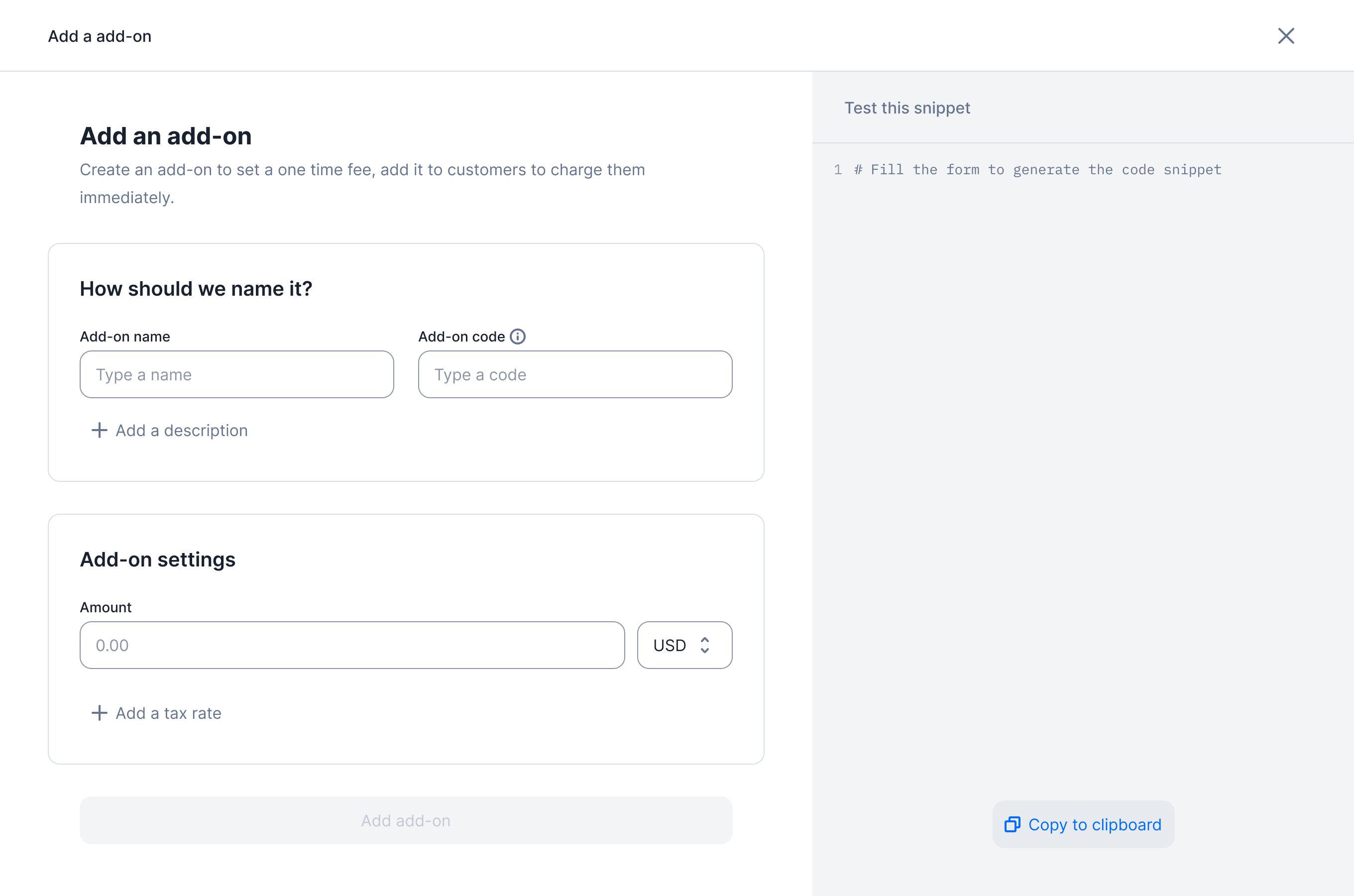
### Taxes at the add-on level
Follow these steps to apply tax objects to a add-on:
1. Make sure you have already set up the required taxes within your account.
2. Navigate to the "Add-ons" section and click on "Add an add-on."
3. Within the "Add-on settings" area, click on "Add a tax rate."
4. Finish creating your add-on and apply it to customers using a one-off invoice to generate the invoice.
```bash Add taxes to a plan and to charges
LAGO_URL="https://api.getlago.com"
API_KEY="__YOUR_API_KEY__"
curl --location --request POST "$LAGO_URL/api/v1/plans" \
--header "Authorization: Bearer $API_KEY" \
--header 'Content-Type: application/json' \
--data-raw '{
"plan": {
"name": "Starter",
"code": "starter",
"interval": "monthly",
"description": "",
"amount_cents": 9900,
"amount_currency": "USD",
"trial_period": "",
"pay_in_advance": true,
"bill_charges_monthly": null,
"tax_codes": ["french_standard_vat"]
"charges": [
{
"lago_billable_metric_id": "61ddebee-f8ac-4794-90cf-d626b55ab0ed",
"billable_metric_code": "user_seat",
"charge_model": "standard",
"invoiceable": true,
"pay_in_advance": false,
"prorated": false,
"min_amount_cents": 0,
"tax_codes":["french_standard_vat"]
"properties": {
"amount": "0.10"
}
}
]
}
}'
```
### Taxes at the add-on level
Follow these steps to apply tax objects to a add-on:
1. Make sure you have already set up the required taxes within your account.
2. Navigate to the "Add-ons" section and click on "Add an add-on."
3. Within the "Add-on settings" area, click on "Add a tax rate."
4. Finish creating your add-on and apply it to customers using a one-off invoice to generate the invoice.
 ```bash Add taxes to an add-on
{
"add_on": {
"name": "Setup fee",
"code": "setup_fee",
"amount_cents": 100000,
"amount_currency": "USD",
"description": "",
"tax_codes": ["french_standard_vat"]
}
}
```
```bash Add taxes to an add-on
{
"add_on": {
"name": "Setup fee",
"code": "setup_fee",
"amount_cents": 100000,
"amount_currency": "USD",
"description": "",
"tax_codes": ["french_standard_vat"]
}
}
```
Keep in mind that tax rates defined at the add-on level can be overridden when creating a one-off invoice.
## Tax hierarchy
### Invoice linked to a subscription
When an invoice linked to a subscription is generated,
the taxation process follows a hierarchy that determines how taxes are applied to different fees:
1. Taxes defined at the **organization** level will impact all invoice fees (subscription & charges).
2. Taxes defined at the **customer** level will override the organization-level taxes and impact all invoice fees (subscription & charges).
3. Taxes defined at the **plan** level will override the customer-level taxes and impact all invoice fees (subscription & charges).
4. Taxes defined at the **charge** level will override the plan-level taxes but will impact only the fee associated with that particular charge.
### Invoice linked to a one-off-invoice
When an invoice linked to a one-off is generated, the taxation process follows a hierarchy that determines how taxes are applied to different fees:
1. Taxes defined at the **organization** level will impact all invoice fees
2. Taxes defined at the **customer** level will override the organization-level taxes and impact all invoice fees
3. Taxes defined at the **add-on** level will override the customer-level taxes and impact only the fee associated with that particular add-on
4. While creating a one-off invoice, taxes defined at the **fees** level will override add-on-level taxes but will solely impact the fee associated with that particular add-on.
### Invoice linked to prepaid credit
Since we treat the purchase of credits as an upfront payment before usage, invoices generated for prepaid credit purchases will not include any taxes.
## Auto-detect european taxes with Lago
Lago now features an automatic European tax detection integration for your customers.
Check out our easy-to-follow [integration guide](/integrations/taxes/lago-eu-taxes).