When a new invoice is finalized, Lago will automatically send a
webhook to notify you. It will also generate a PDF
file that you can download and send to your customer.
Dashboard
API
To download an invoice through the user interface:
Click “Customers” in the side menu;
Select a customer from the list;
Open the “Invoices” tab;
Click the ellipsis icon on the right of the invoice; and
Click “Download invoice” to open the file in a new tab.
You can also download invoices via API (learn more).
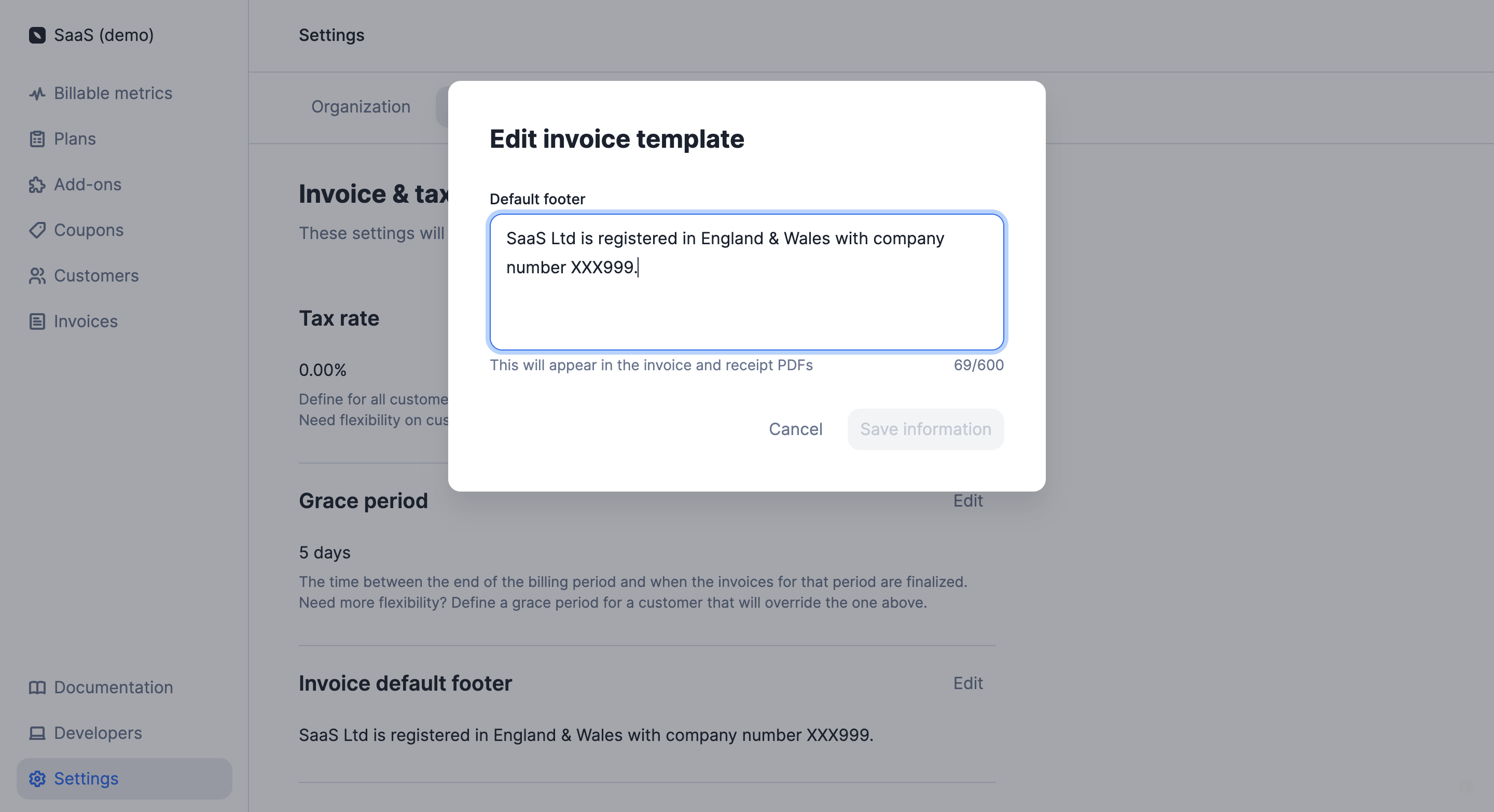
You can modify some of the elements that are included in the PDF invoice, such as information about the organization, its logo and the footer.To update your organization’s information and logo:
Click “Settings” in the side menu;
In the “Organization” tab, click “Edit” in the “Information” block;
Choose a file to update the logo and fill out the form to update your organization’s information; and
Click “Save information” to confirm.
For the logo, you can upload a JPG or PNG file with a maximum size of 800 KB.